
 By
By Choosing how your participants record where their data comes from is one of the most important design choices you’ll make when building a project and datasheet on CitSci.org.
That’s why we give you, the project leaders, flexible tools for defining, assigning, and managing sites — whether you’re working with fixed monitoring stations, participant-created sites, or both.
This guide walks you through the options and best practices for setting up locations for your project.
Your project might be designed to have participants select from a pre-established list of sampling locations – typically, these projects do repeat monitoring at the same locations over time – or it might be designed to have participants submit data at any location where they might be observing something (often called opportunistic sampling) – or your project might need both. We’ll expand on this more in this blog post.
An individual project can support multiple datasheets, and you can customize locations differently for each datasheet.
Before you even worry about locations, make sure you set up your first project and datasheet! Learn more, here.
To edit a project that you manage, start on your project’s CitSci page.
View Project Locations
You can see all the current locations for your project – either ones you’ve specified and/or ones your participants have created – once you click “Locations” under the “Data” dropdown, on your project’s page.
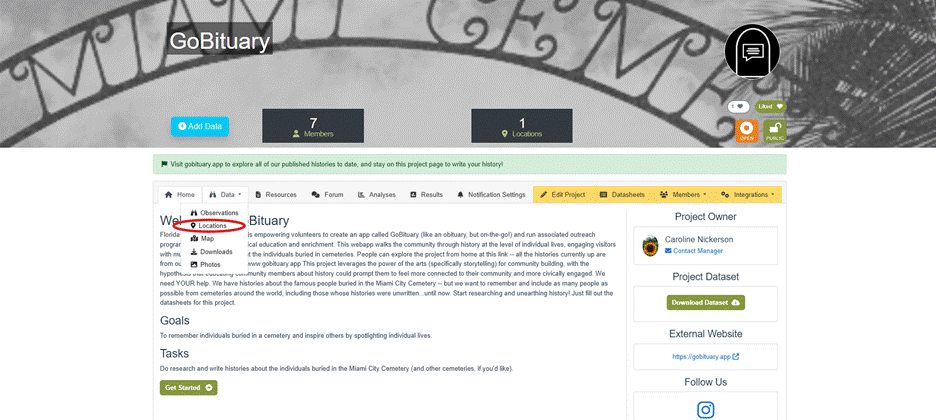
Image caption: Our comms director, Caroline, is demo-ing this with her project, GoBituary!
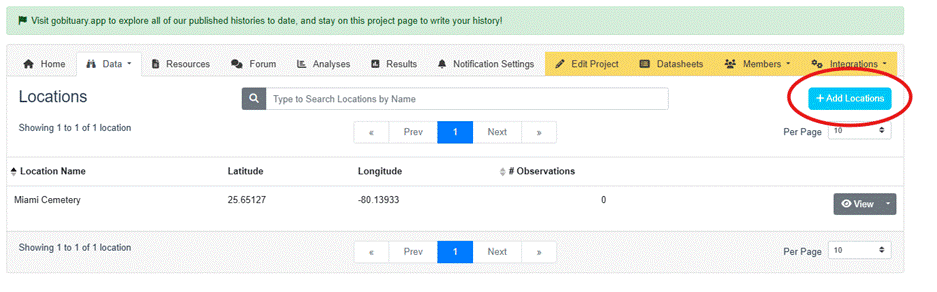
From there, you can click the blue “Add Locations” button.
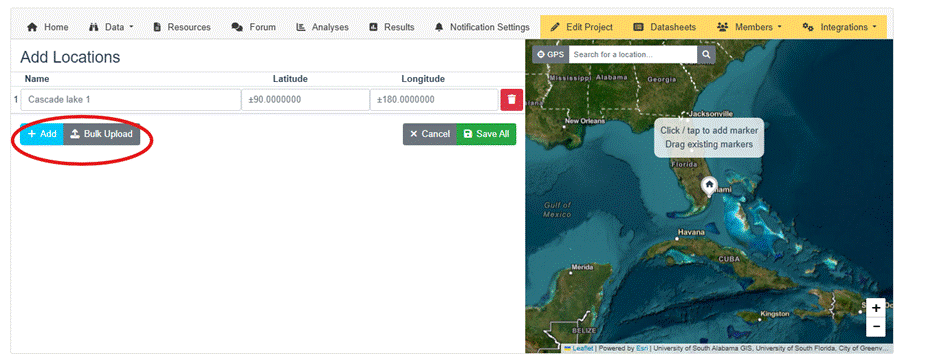
On the Add Locations page you can either add individual locations, or upload them in bulk. You need to know (or use the map tool to search for) the latitude, longitude, and name for each location. After adding the locations, they are ready for you to assign to: 1) all members using a specific datasheet (explained in the next section) or 2) to specific members (more on this later on!).
Edit Locations for Datasheets
To assign to all members using a specific datasheet you’ll want to navigate over to your “Datasheets” tab.
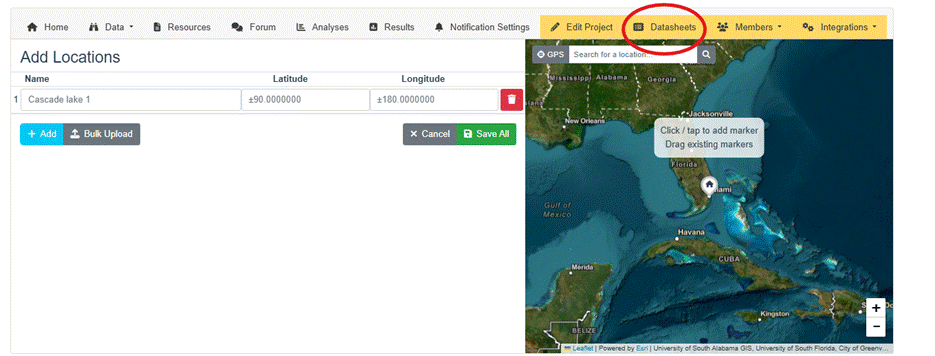
Then, select any one of your datasheets, and click edit.
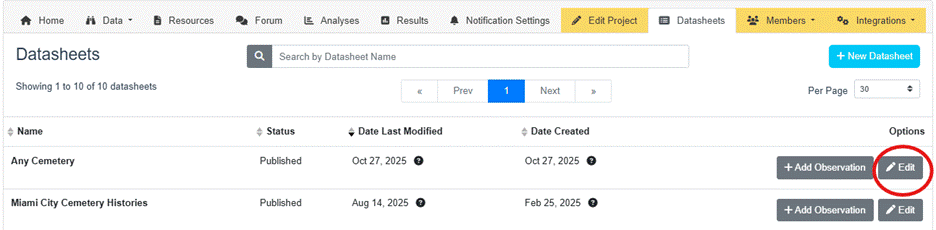
Once in the datasheet creator, click “locations”
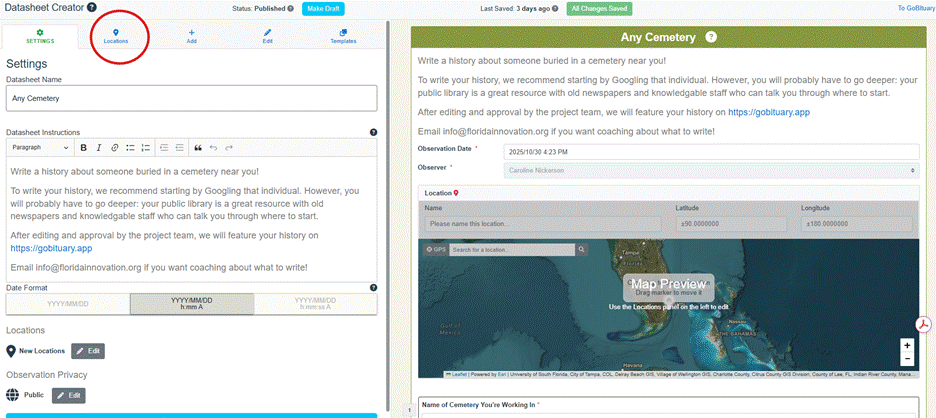
We’ll walk you through this next screen, the “Locations Panel,” step by step.
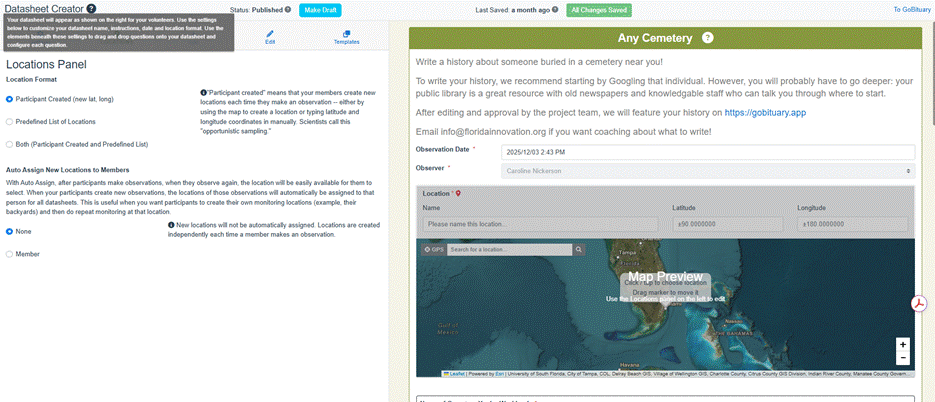
There are three options available for locations:
Participant Created Locations
Use this option if you want your participants to create new sites each time they make an observation. They can drop a pin on the map, use a GPS, or type latitude and longitude manually. Scientists call this opportunistic sampling — perfect for projects where participants might discover new sites, such as recording trash that they see (like Leave No Trash) or snapping pics for Gulls Eating Stuff.
Predefined List of Locations
Select this if you want participants to choose from a list of sites that you create. Predefined sites are best for long-term monitoring, such as tracking the same pond, trail, or classroom aquarium over time (like our friends at Utah Water Watch, who have lists of specific lakes and streams for their volunteers to monitor, each with different datasheets). As we mentioned earlier, you can even assign specific locations to certain participants to ensure consistent coverage. Click “Manage All Assigned Locations” to navigate to that screen.
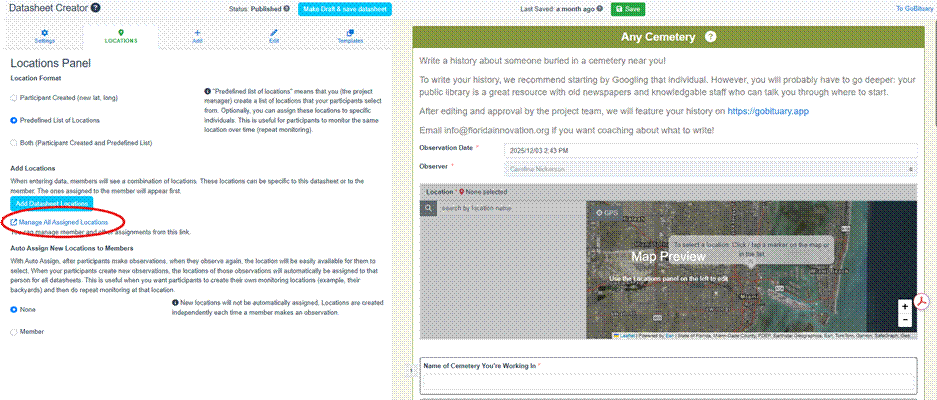
Both (Participant Created and Predefined List of Locations)
Choose this hybrid option if your project combines consistency and exploration. Participants can either pick from your list or create new sites. For example, Stream Tracker uses this approach — volunteers can monitor the same streams each year, but also add new ones as they find them.
Aut0-assignment
PRO TIP: Consider enabling Auto-Assignment at this stage.
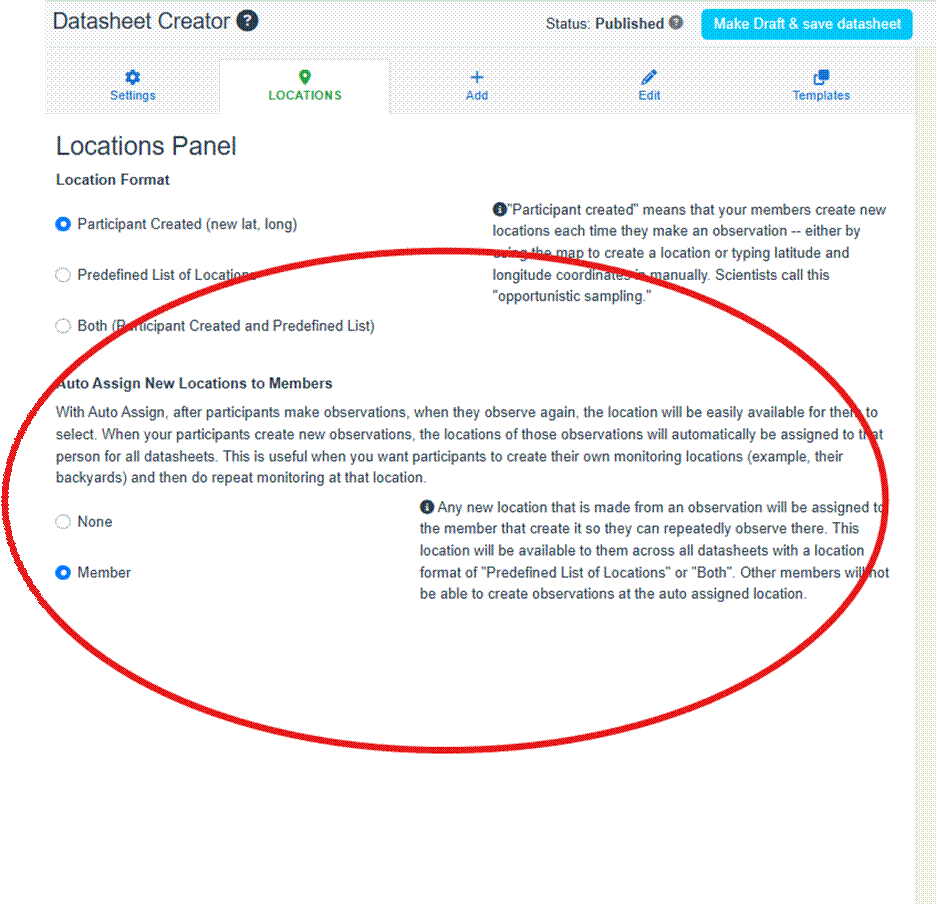
With this setting, any new locations participants create are automatically tied to their profile for future observations — ideal for backyard or repeat-sampling projects.
This feature is important to projects like The Perennial Atlas, where people across the country are monitoring perennial grains in their home gardens and recording data about their growth. In this project, participants add their location (their home garden) and “auto-assign” it to themselves so they can repeatedly monitor their garden over the course of the growing
Assigning Locations to a Member

If you want certain individuals to monitor specific locations, go back to your project’s main page and navigate to the “Assigned Locations” section under the “Members” tab.
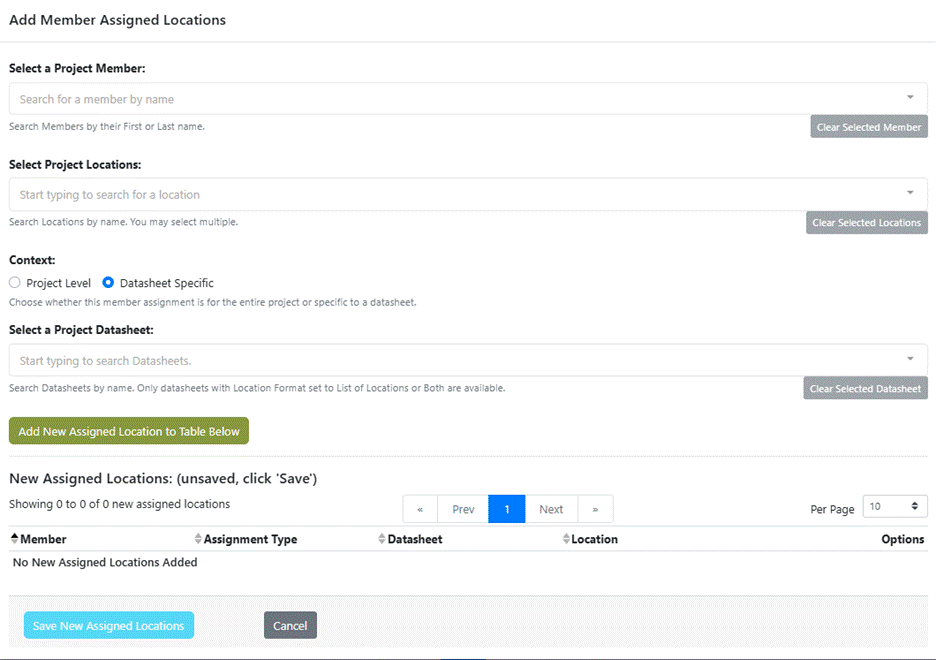
On this page, you can review all current assignments, but to create a new one, click “Add Member Assigned Locations.”

This opens a pop-up where you can assign the locations to members either at the project or datasheet level:
season without needing to add a new location and new coordinates each time.
Final Thoughts
Whether your team is sampling a single park or mapping across continents, thinking through your sampling needs and setting up the right location system from the beginning, ensures you collect the right kind of data to answer your scientific question(s).
Not yet sure which location approach is right for you? Reach out to the CitSci team. We can talk through your situation with you and make recommendations.
Ready to configure your own? Log in to CitSci.org and open your project’s page today!

 CitSci.org Blog