

 By
By What are CitSci Forums?
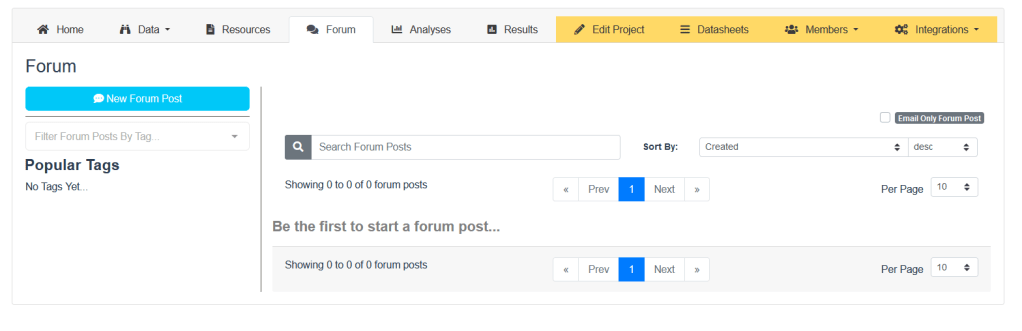
All projects created in CitSci have a Forum tab. The Forum tab was designed as a threaded, structured discussion tool that participants and project managers can use to communicate about their project within the CitSci platform. You can use your project forum to ask questions, post cool photos, generate discussion and so much more.
Read on to see how the Forums work.
How the Forum Works
All members of a project have access to the following Forum functionalities: Adding a post, Deleting your own post, Replying to posts, Tagging a post, Sorting posts, Searching posts.
Project managers have all of those functionalities as well as: Emailing a post to all members and Deleting other people’s posts (for moderation purposes).
Using the Forum for Your Project
Participants and managers use CitSci Forum’s to create discussions about their projects that everyone in the project can view and participate in. Project members can post questions and responses and learn from each other. Forums are also a great place to discuss interesting observations outside of the datasheet. For example, perhaps someone noticed a cool animal while conducting their water quality survey or maybe someone observed a disease on a plant they were monitoring and wanted help identifying it.
Project managers can also use the Forum to post important updates and announcements and build community and camaraderie among members.
Adding a Post
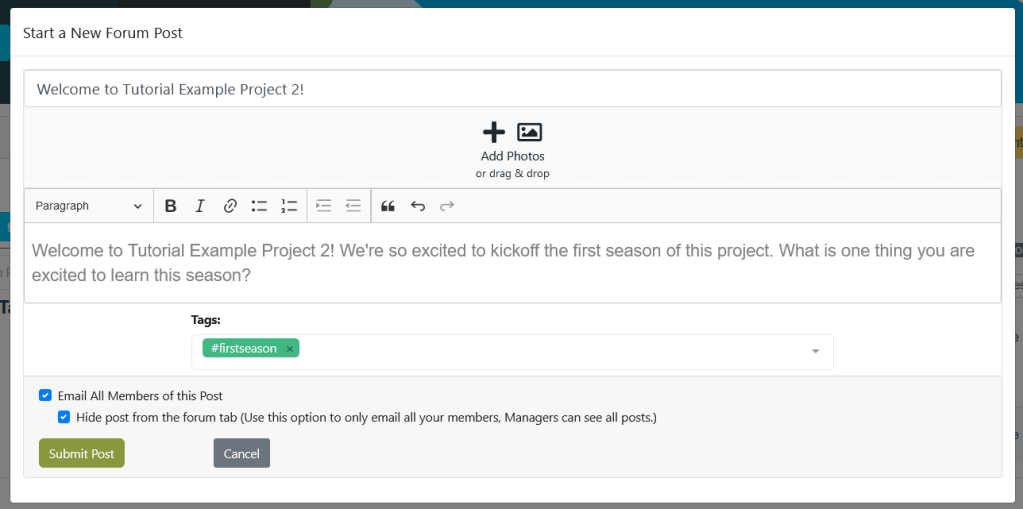
Click on the blue New Forum Post to create a post. A dialogue box will appear where you can add a post title, add photos and add your content. You can also tag posts with keywords to help people find your post later.

Tagging a Post
You can add keyword tags to the first post of a discussion, which helps people find your post later. For example, The Land Institute is working on a project involving several different varieties of perennial grains. Someone from the project may want to ask a question about a particular variety of grain, so they can add a tag for that variety to their post. Project managers can also use keywords like “Announcement” or “Training” to make it easier for members to find the latest updates about their project. Tags cannot be added to replies to posts.
The tag functionality is NOT meant to be used for people. For example, do not make your Project Manager or a fellow participant’s name a tag.

Emailing a Post (Project Managers Only)
Project Managers have an additional option in the Post dialogue box to email a post to all members. A manager may create a post with updates, important announcements, new resources, etc, that they want all members to be alerted to via email. Sometimes a project manager may wish to send an email announcement to all members but they do not want that email to also be posted to the Forum. In that situation, check the “Hide post from the forum tab” option.
Searching, Sorting, and Filtering Discussion Posts
Filter by Tags
Once a project has a lot of posts in their forum, it can be helpful to be able to search for particular posts to find information. On the left side of the Forum page, you can Filter posts by tags and you can see a list of the Popular Tags, along with a count of how many times those tags have been used.

Search Content
In the top center of the Forum page, there is a “Search Forum Posts” box. Use this search to find posts based on words included in the posts. For example, maybe you remember a post about an eagle someone spotted but you just remember “Eagle” was in the title. Type “eagle” into the Search Forum Posts box to find the post you’re looking for.

Sort By
The Sort by box is near the top-right side of the Forum page. Use the Sort by box to organize posts by either the date they were created or alphabetically by post title. There is an additional box to let you choose whether to sort in ascending or descending order.
Deleting Posts
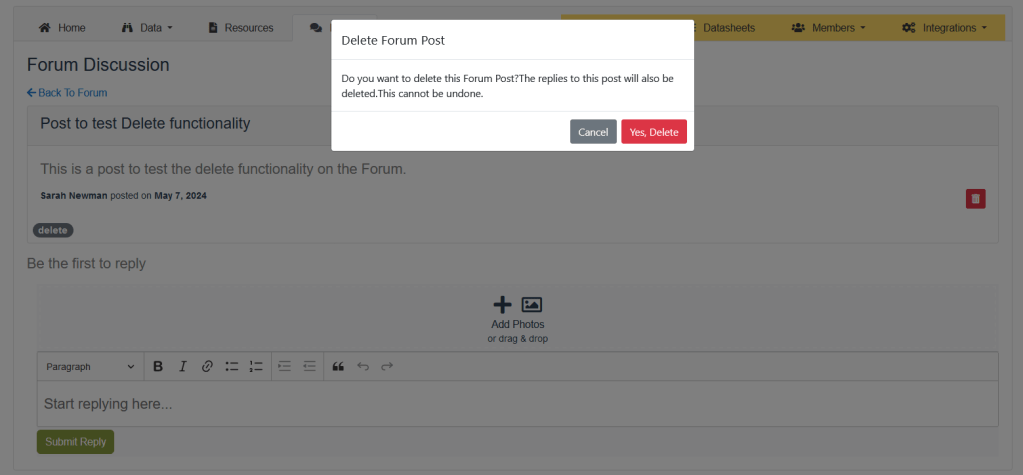
Managers have the ability to delete posts from the Forum. This can be helpful if information from an old post is out of date or, occasionally for moderation purposes. To delete a post, click on the post you want to delete. You will see a red icon on the right of the screen that looks like a small trash can. Click on that icon and a confirmation dialogue will appear. Click on “Yes, Delete” to confirm the deletion or “Cancel” to cancel the deletion.

Notifications of New Posts
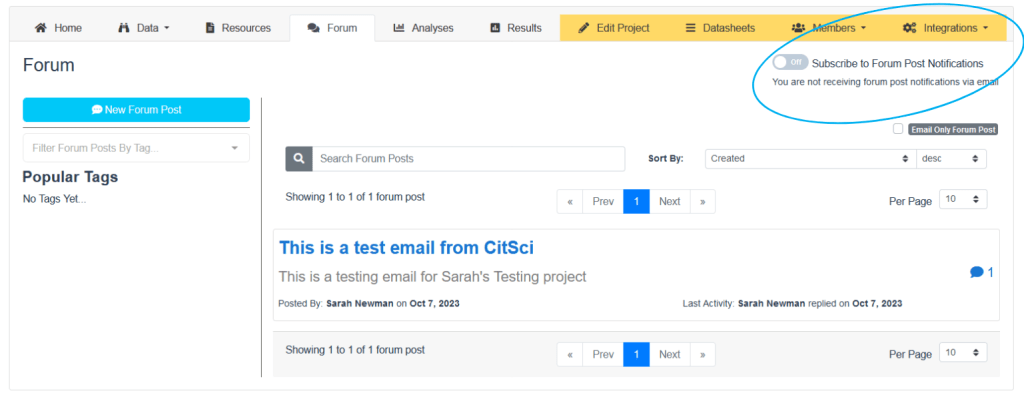
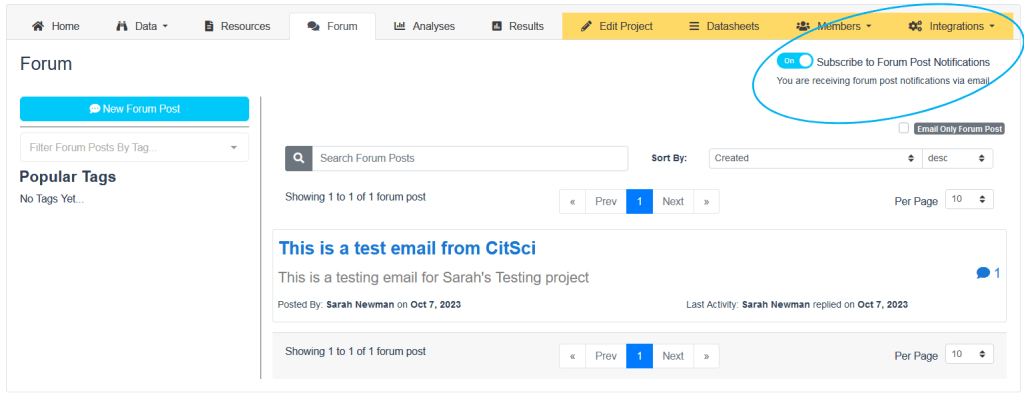
You can opt-in to receiving notifications anytime a post appears on the Forum for your project. This is a very helpful feature when you are part of a project because it helps you stay informed about what is happening with the project. It can also be a great way to stay connected to your project’s community. To opt-in to notifications, click on the off/on toggle to the upper right hand corner of the Forum Discussion box on the main Forum page. The toggle will be gray in the “Off” position and blue in the “On” position.
If you choose not to opt-in to notifications, be sure to check the forum frequently for replies to comments you posted and to see the latest conversations about your project!

 CitSci.org Blog